
An Amazon Fire TV Stick turns any TV with an HDMI port into an IPTV player. You install a player app, enter the login we send you, and your channels, TV guide and on-demand library load in a couple of minutes. For most people the whole IPTV Firestick setup takes about ten minutes.
There is one catch in 2026. Amazon has started moving its streaming sticks to a new operating system called Vega OS, which can only install apps from the Amazon Appstore. So before you follow any setup guide, check which kind of Fire TV Stick you have. The table below covers every model you are likely to own.
Which Fire TV Sticks work with IPTV in 2026
Fire TV devices now run one of two systems. Fire OS is based on Android and lets you install a player app from a download link. Vega OS is Linux-based and only installs apps from the Amazon Appstore, so you are limited to the players Amazon lists there.
| Fire TV device | System | Install an IPTV player from a link? | Picture | Verdict for IPTV |
|---|---|---|---|---|
| Fire TV Stick 4K Max (2nd gen, 2023) | Fire OS | Yes | 4K HDR, Dolby Vision, Wi-Fi 6E | Best Fire TV Stick for IPTV |
| Fire TV Stick 4K Plus | Fire OS | Yes | 4K HDR, Wi-Fi 6 | Very good, and cheaper than the Max |
| Fire TV Stick 4K (2nd gen, 2023) | Fire OS | Yes | 4K HDR, Wi-Fi 6 | Still a good choice if you already own one |
| Fire TV Stick HD (1st gen, 2024) | Fire OS | Yes | 1080p | Fine for bedrooms and smaller TVs |
| Fire TV Cube | Fire OS | Yes | 4K HDR, Ethernet built in | Excellent: the most powerful Fire TV |
| TVs with Fire TV built in | Fire OS | Yes | Matches the TV | Works like a Fire TV Stick |
| Fire TV Stick 4K Select (2025) | Vega OS | No, Appstore only | 4K HDR10+ | Works only with an Appstore player |
| Fire TV Stick HD (2nd gen, 2026) | Vega OS | No, Appstore only | 1080p | Works only with an Appstore player |
How to check your model: open Settings → My Fire TV → About. If the software version starts with “1.”, your device runs Vega OS. If it shows a Fire OS version (for example Fire OS 8), you can follow the full setup guide below.
What you need before you start
Setting up IPTV on a Firestick is quick if you have everything to hand:
- Your login details. We send them on WhatsApp or email after your free trial request or order. They come as an Xtream Codes login (server address, username and password) or an M3U playlist link. If you are not sure which is which, read Xtream Codes login explained.
- A Fire TV Stick on the latest software. Check the table above to see whether it runs Fire OS or Vega OS.
- A decent connection. Around 10 Mbps is enough for Full HD and 25 Mbps for 4K. Our guide to internet speed for IPTV explains how to test it properly.
- Ten minutes and the Fire TV remote.
How to set up IPTV on a Firestick (Fire OS)
These steps work on every Fire OS device in the table: the 4K Max, 4K Plus, 4K, the 2024 HD model, the Fire TV Cube and TVs with Fire TV built in.
Update your Fire TV
Go to Settings → My Fire TV → About → Check for updates and install anything available. An up-to-date system avoids most installation errors and keeps the video decoders current.
Install the Downloader app
From the home screen, open Find → Search, type Downloader and install the free app from the Amazon Appstore. Downloader lets you install a player app from a web link, which is how most IPTV players are distributed on Fire TV.
Allow Downloader to install apps
Open Settings → My Fire TV → Developer options → Install unknown apps and switch Downloader on. If you can’t see Developer options, go to Settings → My Fire TV → About, highlight your device name and press the select button seven times until you see “You are now a developer”.
Install your IPTV player
Open Downloader and enter the download address from the player developer’s official website, or the link in your welcome message. Follow the prompts, choose Install, then Done, and delete the installer file when Downloader offers to. Our guides to TiviMate and IPTV Smarters Pro explain where the genuine versions come from.
Add your login
Open the player and choose Xtream Codes (sometimes called “Xtream Codes API” or “Login with Xtream”). Enter the server address, username and password exactly as we sent them, including http:// and any port number. If you received an M3U link instead, choose M3U playlist and paste the full address.
Let the channels and TV guide load
The first load takes a minute or two while the player downloads the channel list, the programme guide and the films and series library. When it finishes, open the TV guide and check that programmes appear against each channel.
Tidy up and add favourites
Go back to Install unknown apps and switch Downloader off again. Then add the channels you watch most to a favourites group, and move the player to the front of your apps row: hold the Home button, choose Apps, highlight the player and press the Menu button to move it.
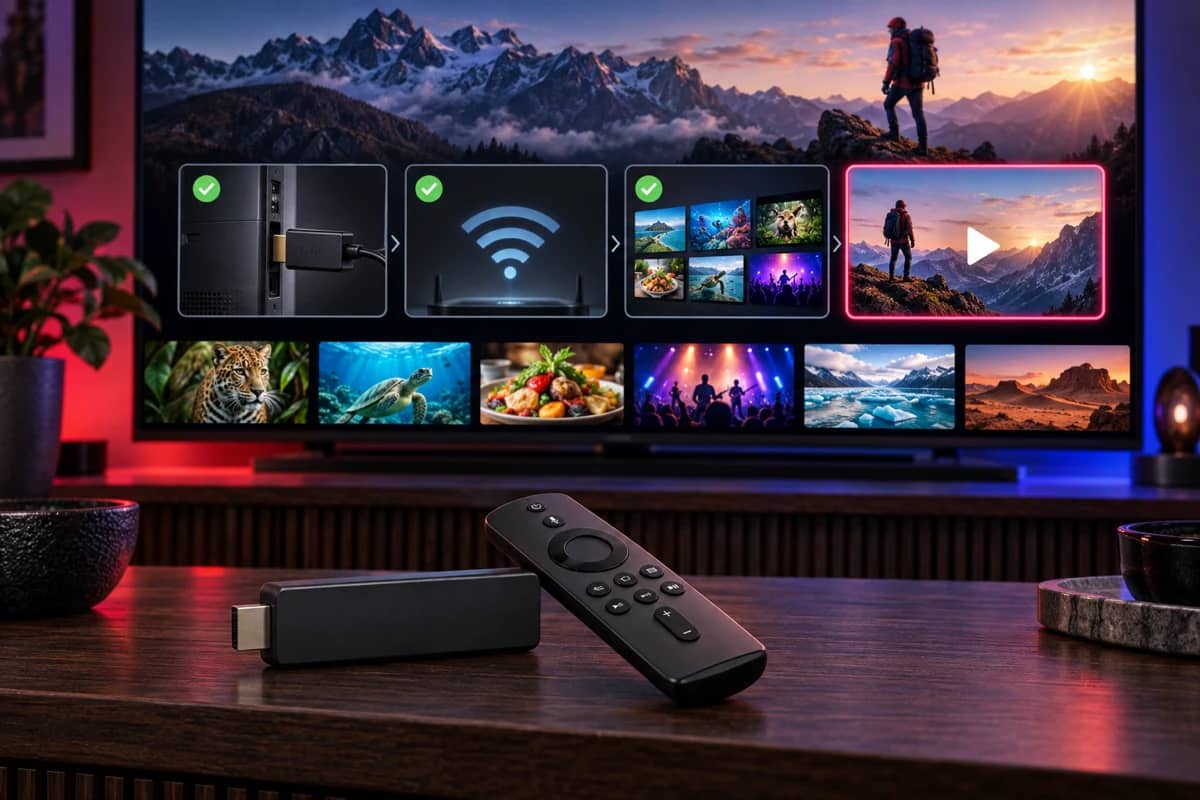
Setting up IPTV on a Vega OS Fire TV Stick
The Fire TV Stick 4K Select and the 2026 Fire TV Stick HD can’t use Downloader and can’t install apps from a link. There is no setting to change this. You have three options:
- Use a player from the Amazon Appstore. Search the Appstore for “IPTV player” and choose one that supports Xtream Codes or M3U playlists. The selection is smaller than on Fire OS and changes over time, so read the listing before you install. If you’re not sure, send us your model on WhatsApp and we’ll suggest a player that works with your login.
- Use your TV’s own apps. Many Samsung and LG TVs can run an IPTV player directly. See our guides for Samsung Smart TVs and LG Smart TVs.
- Swap to a Fire OS device. If you are buying new, choose the Fire TV Stick 4K Max, the 4K Plus or an Android TV box, which run the widest choice of players.
The best IPTV apps for Firestick
Every player below works with an Xtream Codes login or an M3U link from us. None of them contains channels of its own; they play the subscription you add. Availability and prices of third-party apps change, so check the current listing before you pay for any upgrade.
| Player | Best for | Cost | TV guide | Recording |
|---|---|---|---|---|
| TiviMate | A TV-style guide and a polished live TV experience | Free, with a paid Premium upgrade | Excellent | Yes (some features need Premium) |
| IPTV Smarters Pro | Beginners, and browsing films and series | Free, with paid options on some platforms | Good | Limited |
| SmartOne IPTV | Households that also use a Smart TV | Free trial, then a one-time fee | Good | No |
| Amazon Appstore players | Vega OS sticks | Varies | Varies | Varies |
Our recommendation: TiviMate if live TV and the programme guide matter most, IPTV Smarters Pro if you mainly watch films and series or want the simplest setup. You can install both and use the same login in each, one stream at a time.
For the UK’s free channels on the same stick, install the broadcasters’ own apps: see Freeview channels on a Firestick.
Which Firestick is best for IPTV?
Every Fire OS stick plays IPTV, but they do not all feel the same with a large channel list and a seven-day programme guide:
- Fire TV Stick 4K Max (2nd gen). The best Fire TV Stick for IPTV. It has more memory and storage than the cheaper sticks, and Wi-Fi 6E holds a steadier connection when the whole house is online in the evening. Pick this for your main TV.
- Fire TV Stick 4K Plus. A strong, cheaper 4K choice with Wi-Fi 6, and it still runs Fire OS.
- Fire TV Cube. The fastest Fire TV device and the only one with an Ethernet port built in. Worth it if the TV is close to your router.
- Fire TV Stick HD (2024). Good for a bedroom or kitchen TV where 1080p is enough.
- Fire TV Stick 4K Select and HD (2026). Fine streaming sticks, but the least flexible for IPTV because of Vega OS.
If you want the widest choice of apps, wired internet and more memory than any stick, an Android TV box is the step up.
How to get a stable picture on Fire TV
Most playback problems on a Firestick come from the connection, not the service. These changes make the biggest difference:
- Use the 5 GHz Wi-Fi network. It is faster and less crowded than 2.4 GHz, especially in flats. If your router shows one network name for both, the stick usually picks 5 GHz when it is close enough.
- Use the HDMI extender. A stick plugged directly into the back of the TV sits behind a metal panel. The short extender cable supplied with many sticks moves it into the open and often improves the signal noticeably.
- Plug in a cable if you can. Amazon’s Ethernet adapter for Fire TV gives the most stable picture for live sport and 4K.
- Set the picture correctly. In Settings → Display & Sounds → Display, leave video resolution on Auto and turn on Match original frame rate so films and TV play smoothly on a 4K TV.
- Clear the player’s cache now and then. Go to Settings → Applications → Manage installed applications, choose the player and select Clear cache. It frees space and fixes sluggish menus.
For 4K and 8K, see what else your TV and connection need in our 8K and 4K IPTV guide.
Firestick troubleshooting
IPTV buffering or freezing on Fire TV
Restart the stick by holding Select and Play/Pause together for five seconds. Then run a speed test from the Fire TV itself, not your phone, because the stick’s Wi-Fi is usually weaker. If the result is below 15 Mbps, move the router, use the extender or add the Ethernet adapter. The full step-by-step list is in our buffering and freezing guide.
“App not installed” or the install won’t start
Check that Install unknown apps is switched on for Downloader (step 3). Make sure there is at least 500 MB of free storage in Settings → My Fire TV → About → Storage. If your device runs Vega OS, installing from a link is not possible, so use an Appstore player instead.
A message says the app has been blocked
This is Amazon’s protection against apps it links to unlicensed content. Uninstall the app and use a different player from our app comparison or the Amazon Appstore.
The TV guide is empty or shows the wrong times
Open the player’s settings and refresh the EPG, then check Settings → Preferences → Time zone is set to your local time. Guides usually fill within a few minutes of a refresh. More fixes are in TV guide (EPG) problems.
The stick is slow or apps close on their own
Uninstall apps you don’t use, clear the player’s cache and restart. If the stick is several years old, a newer Fire OS model or an Android TV box will make a large channel list much more comfortable to browse.
Firestick vs Android TV box vs Smart TV app
| Fire TV Stick (Fire OS) | Android TV box | Smart TV app | |
|---|---|---|---|
| Cost | Low | Low to high | Nothing extra |
| Choice of IPTV players | Wide | Widest | Limited to the TV’s app store |
| Wired internet | With an adapter | Usually built in | Usually built in |
| Speed with a big channel list | Good (best on 4K Max) | Very good on a quality box | Varies; older TVs are slow |
| Best for | Most living rooms, second TVs, travel | Main TV and live sport | Anyone who wants no extra device |
Whichever you choose, one subscription works on all of them. See every option on our supported devices page.
Test it on your Fire TV Stick first
Request a free trial, follow the steps above and watch through a busy evening before you choose a plan.