
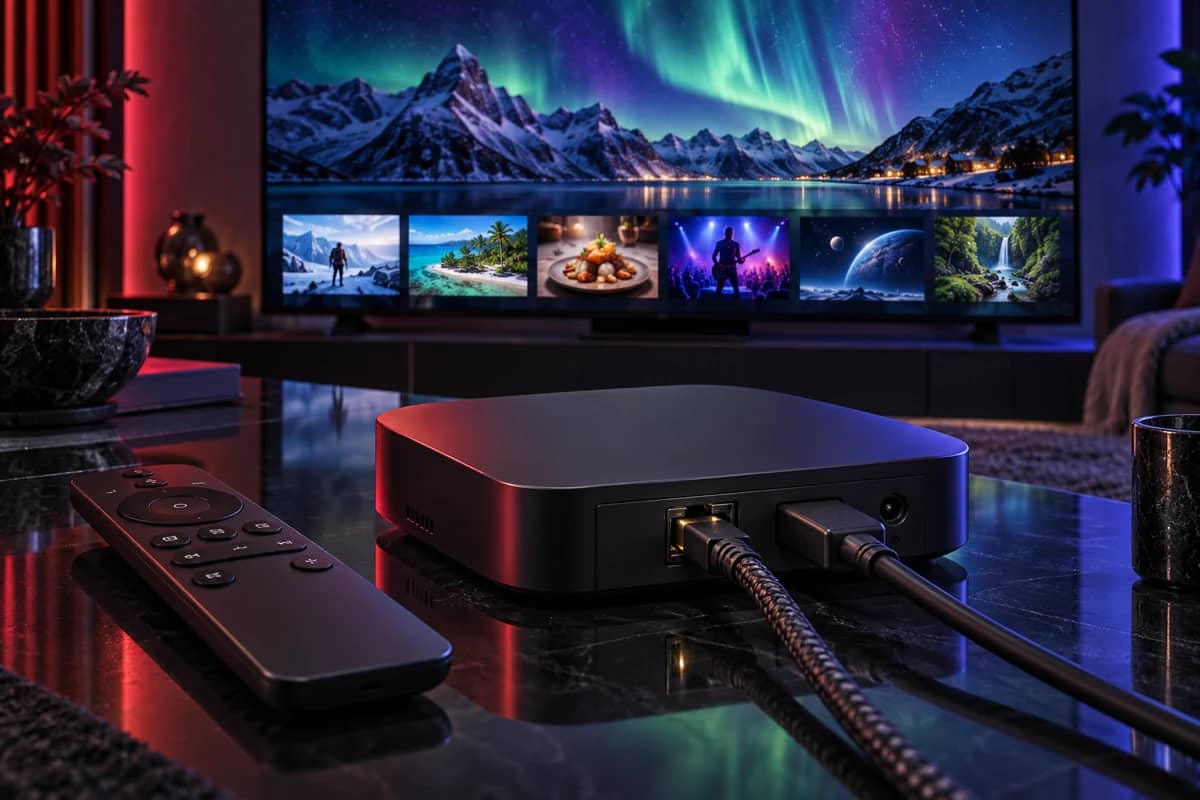
When people talk about an IPTV box, they usually mean an Android TV or Google TV box: a small streaming box that plugs into your TV’s HDMI port and runs a player app. It does the same job as a Fire TV Stick, but a good box has more memory, a wired internet port and the widest choice of player apps, which makes it the most comfortable way to watch IPTV on your main TV.
You don’t need a special “IPTV box”. Any mainstream Android TV box works with our service, and you may already own one.
What makes a good IPTV box
A channel list with thousands of entries and a seven-day TV guide asks more of a box than a single streaming app. These are the specifications that make a real difference:
| Specification | What to look for | Why it matters for IPTV |
|---|---|---|
| Operating system | Google TV or Android TV 11 or newer | Current player apps and security updates |
| Certification | Google-certified (Google Play Store built in) | Easy app updates; avoids modified firmware |
| Memory (RAM) | 3 to 4 GB or more | Quick channel switching; the guide doesn’t stall |
| Network | Gigabit Ethernet port, plus Wi-Fi 5 or 6 | A wired connection is the biggest stability upgrade |
| Video decoding | HEVC (H.265), ideally AV1 | Smooth 4K at lower bandwidth |
| Storage | 8 GB minimum, 16 GB+ for recording | Room for the player, guide data and updates |
| HDMI | HDMI 2.0 for 4K; HDMI 2.1 only if you need 8K | Correct output for your TV |
The best Android TV boxes for IPTV
These are well-known, widely available boxes that handle IPTV well. We don’t sell hardware and don’t earn anything from these suggestions.
- Nvidia Shield TV Pro. An older design that is still one of the fastest Android TV boxes, with 3 GB of memory, Gigabit Ethernet and USB ports for storage. Excellent for large channel lists and recording.
- Google TV Streamer. Google’s own box, with Ethernet built in and Google TV software kept up to date by Google. A good, simple choice for most homes.
- IPTV-focused Android boxes such as Formuler models. Designed around live TV, with an Ethernet port and a TV-guide-first player included. Popular with people who watch mostly live channels.
- Budget Google TV boxes such as the Xiaomi TV Box S. Fine for a second TV, but with less memory and no Ethernet port, they are slower with very large channel lists.
If you’d rather not add a box at all, compare the options on our supported devices page, including the Smart TV apps.
IPTV box vs Firestick vs Smart TV
| Android TV box | Fire TV Stick | Smart TV app | |
|---|---|---|---|
| Choice of player apps | Widest, from Google Play and developer sites | Wide on Fire OS, Appstore-only on Vega OS | Limited to the TV’s store |
| Wired internet | Usually built in | Needs an adapter | Usually built in |
| Memory for large guides | Most (on quality boxes) | Moderate | Varies with the TV’s age |
| Recording | Yes, with USB storage | Limited by storage | Rarely |
| Price | Low to high | Low | Nothing extra |
For the main TV and live sport, a quality box on a cable is the most reliable option. For bedrooms and travel, a Fire TV Stick is hard to beat.
How to set up IPTV on an Android TV box
These steps work on Google TV and Android TV boxes. The menu names can vary slightly between manufacturers.
Connect the box to your router
Plug an Ethernet cable from your router into the box. If a cable isn’t practical, connect to your router’s 5 GHz Wi-Fi network rather than 2.4 GHz, which is slower and more crowded.
Install system updates
Open Settings → System → About → System update and install anything available. Updates fix bugs and keep the video decoders current.
Install your IPTV player
Open the Google Play Store, search for the player you want and install it. TiviMate is our first choice on Android TV; IPTV Smarters Pro is simpler for beginners. On a box without Google Play, download the player from the developer’s official website using the browser or a downloader app.
Add your login
Open the player and choose Xtream Codes (or M3U playlist if that’s what we sent). Enter the server address, username and password exactly as they appear in your welcome message. Wait a minute or two while channels, the TV guide and the films library load.
Set up favourites and start-up
Add the channels you watch most to a favourites group and hide categories you never use. If your box allows it, set the player to open automatically when the box turns on, so it behaves like a normal TV box.
Check the picture settings
In Settings → Display & Sound, set the resolution to match your TV (usually 4K at 60 Hz for a 4K TV) and turn on frame-rate matching if the option exists. This makes films and live TV play smoothly without judder.
Google TV, Android TV and uncertified boxes
You’ll see three kinds of box on sale, and the difference matters:
- Google TV is Google’s current interface. It groups content from your streaming apps on the home screen, and every certified box gets Google Play and regular security updates.
- Android TV is the earlier interface. Many excellent boxes, including the Shield, still run it. Player apps install from Google Play in exactly the same way.
- Uncertified “Android” boxes run a phone version of Android or modified firmware. They often lack Google Play, don’t get security updates and may not play protected content. Some are sold with unlicensed apps pre-installed. We recommend avoiding them.
Getting the smoothest picture from your box
- Use the Ethernet port. It removes Wi-Fi as a source of buffering, especially in the evening when neighbouring networks are busy.
- Keep the box ventilated. Boxes that overheat inside a closed cabinet slow down and can restart.
- Clear the player’s cache occasionally in Settings → Apps → [player] → Storage → Clear cache.
- Turn on HDMI-CEC (often called “CEC” or “Anynet+” on Samsung TVs) so the TV remote can control the box and the box wakes the TV.
- Match the frame rate for films and sport, as in step 6.
Our internet speed guide explains how to test the connection on the box itself, and the buffering checklist walks through every fix in order.
Android TV box troubleshooting
The player isn’t in the Play Store
Some players, including TiviMate, are published for TV devices only, so they don’t appear on phones and may not appear on uncertified boxes. On an uncertified box, install the player from the developer’s official website instead.
Channels load but the TV guide is empty
Refresh the guide in the player’s settings and check the time zone in Settings → System → Date & time. Guides usually fill within a few minutes. More fixes are in TV guide (EPG) problems.
The box feels slow or apps close
Uninstall apps you don’t use, clear the player’s cache and restart the box. If it has 2 GB of memory or less, a large channel list will always feel sluggish; hiding unused categories helps.
The picture flickers or goes black
Swap the HDMI cable for a certified High Speed cable, try a different HDMI port on the TV, and check the TV’s enhanced HDMI mode is on for 4K. Our 8K and 4K guide lists the setting for each TV brand.
A word about “fully loaded” boxes
Boxes sold online or at markets as “fully loaded” or “free TV for life” come with apps already set up to stream pay-TV channels. They are almost always unlicensed. In the UK, people selling them have received prison sentences, and viewers have been warned they can also be prosecuted. The boxes are also a common way to spread malware.
A plain box from a mainstream retailer, plus a subscription from a provider you can contact, costs little more and doesn’t carry those risks. Read is IPTV legal in the UK for the full picture.
If you’re choosing between a box and a dedicated MAG set-top box, see MAG box vs Android TV box.
Test your box before choosing a plan
Request a free trial, set up your player with the steps above and watch through a busy evening.